Settings
Basic data can be stored in the settings. With the appropriate permissions, individual companies can also be adjusted here.
Working Hours
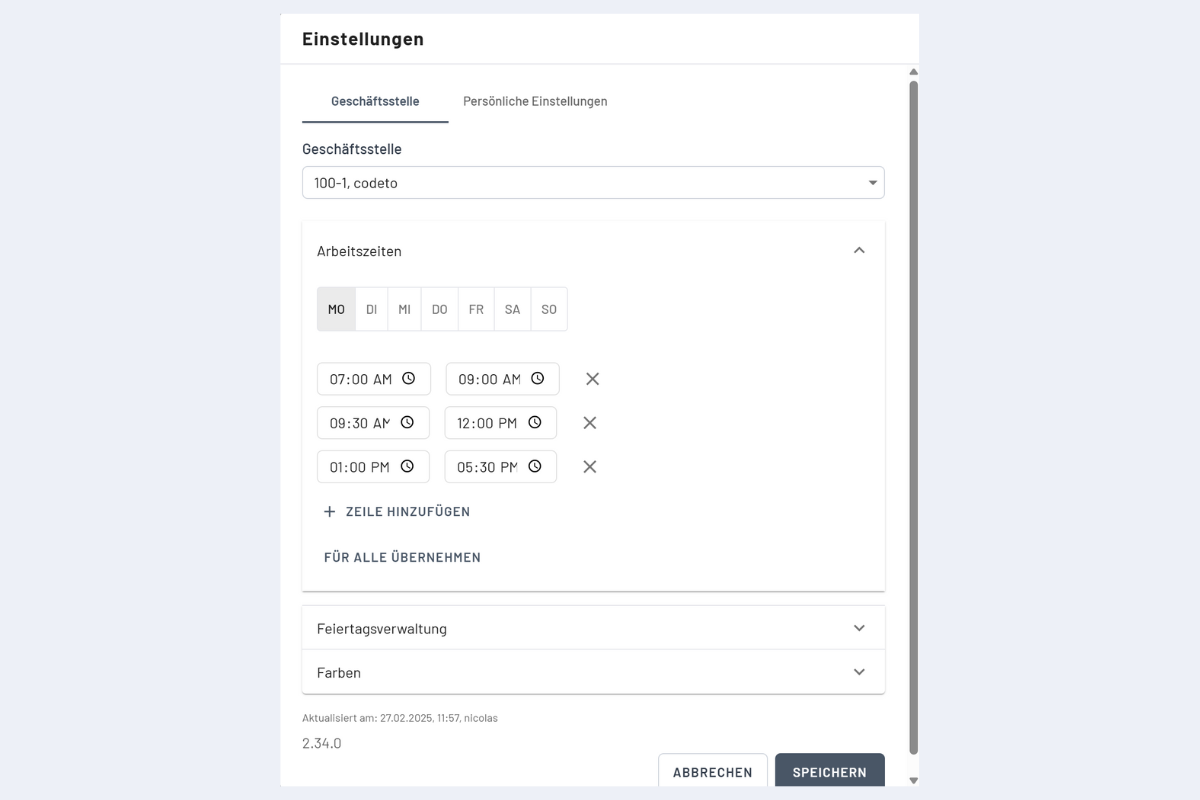
The standard working hours for the company can be defined here (see Fig. Working Hours Settings). When creating a disposition, these times are automatically scheduled, while defined breaks are considered and kept free.
These settings should definitely be made before the first dispositions are created – because the working hours only apply to future dispositions and do not affect previously created ones retroactively.
Calendar
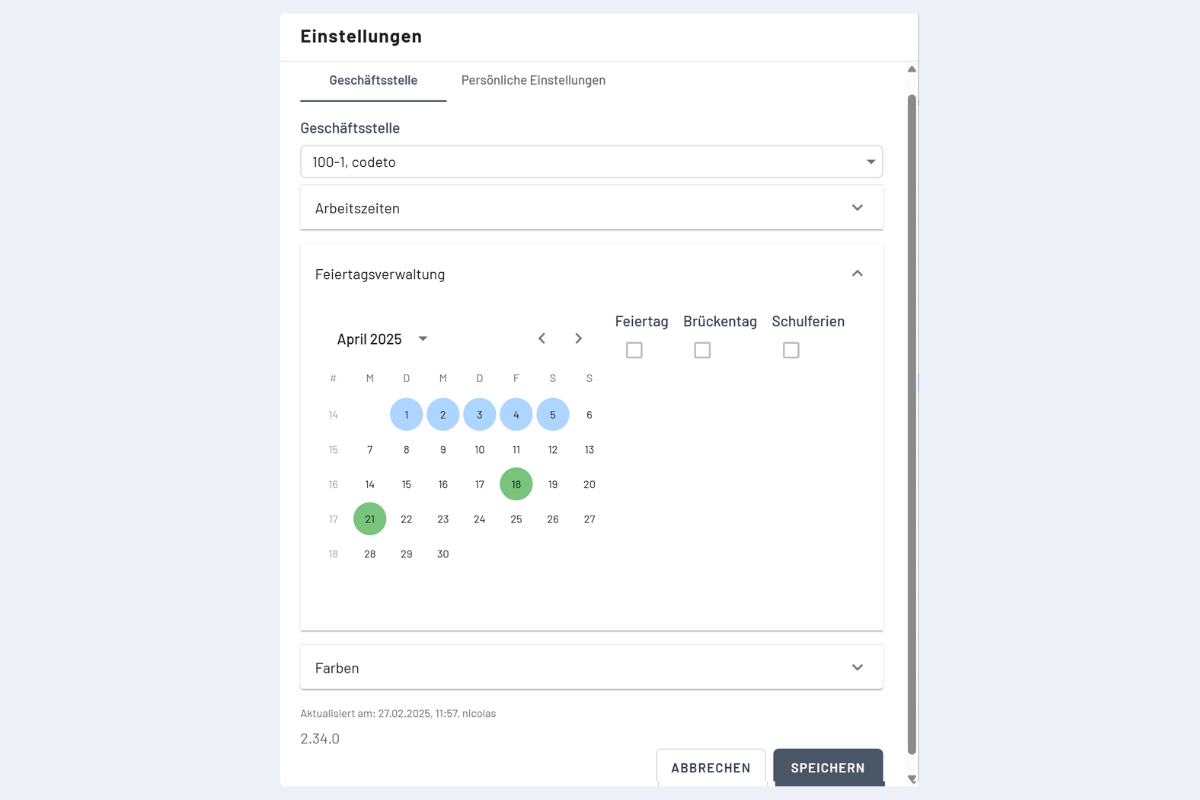
Vacations, holidays, and bridge days for the company can be defined here (see Fig. Holiday and Bridge Day Settings & School Holidays). Holidays and bridge days are treated like weekends, meaning they are considered non-working days (more on this in the Disposition section). Vacation days are purely informative and are highlighted in color in the main view.
If multiple days are to be selected (e.g., for vacations), select the start date and mark additional days with CTRL (individual days) or SHIFT (period up to the last date). Then check the box for School Holidays.
Colors
The default color for all projects, service orders, and info bookings (more on this in the chapter Employees / Create New Disposition in Employee View) can be defined here.
The color can be individually adjusted if needed when a project or service is created.
Personal Settings
In the first line, it can be determined whether the utilization check is displayed. If this option is selected, the utilization is automatically calculated in the employee, project, and service views and displayed in the top row (more on this in the chapter Utilization / Utilization Check).